Getting Started with Lightwell
Set up your AI chatbot in 15 minutes and start engaging with your audience 24/7.
📹 Watch: Complete Setup Tutorial (5 minutes)
What You'll Need
Before you begin, make sure you have:
- Instagram Business Account - Convert your personal account to business in Instagram settings
- Lightwell Subscription - Choose a tier from our pricing page
- Affiliate Links (Optional) - A list of products you want to recommend
Step 1: Connect Instagram
After signing up, click "Sign in with Instagram" to connect your account.
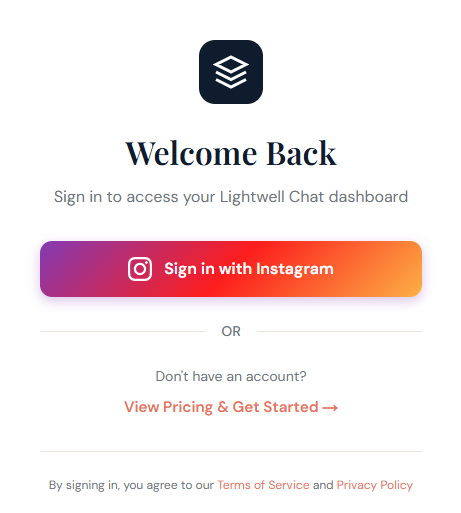
💡 Tip: Make sure you're logged into the correct Instagram account before clicking "Sign in with Instagram"
What happens next:
- Instagram will ask you to authorize Lightwell to access your business data
- Click "Allow" to grant permissions
- You'll be redirected back to Lightwell automatically
Step 2: Configure Creator Identity
Tell us about you and your content so we can train your chatbot to sound like you:
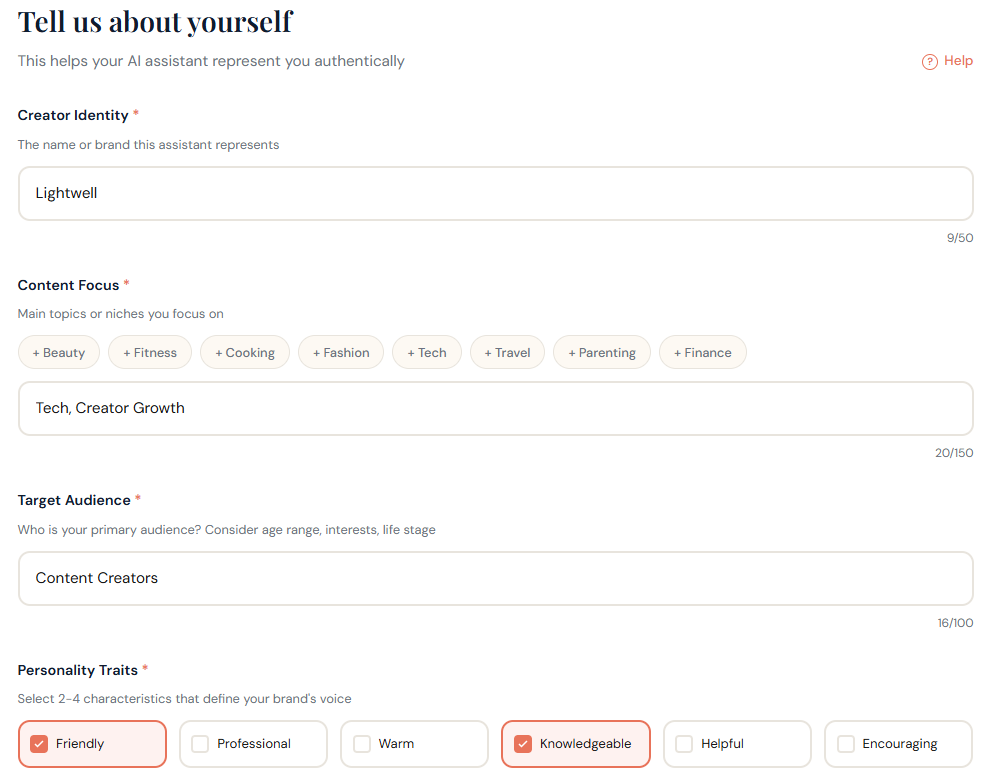
Creator Identity Fields
- Creator Identity: How you introduce yourself (e.g., "Sarah, a wellness coach")
- Content Focus: Topics you cover (e.g., "skincare routines, product reviews, self-care tips"). Use the quick add buttons or type custom topics.
- Target Audience: Who follows you (e.g., "women 25-40 interested in natural beauty")
- Personality Traits: Choose 2-4 traits that describe your voice (Friendly, Professional, Warm, Knowledgeable, etc.)
Good Example:
"I'm Kate, a makeup artist who creates tutorials for busy moms who want quick, natural looks using clean beauty products."
Step 3: Customize Bot Appearance
Make your chatbot match your brand with a live preview of your changes:
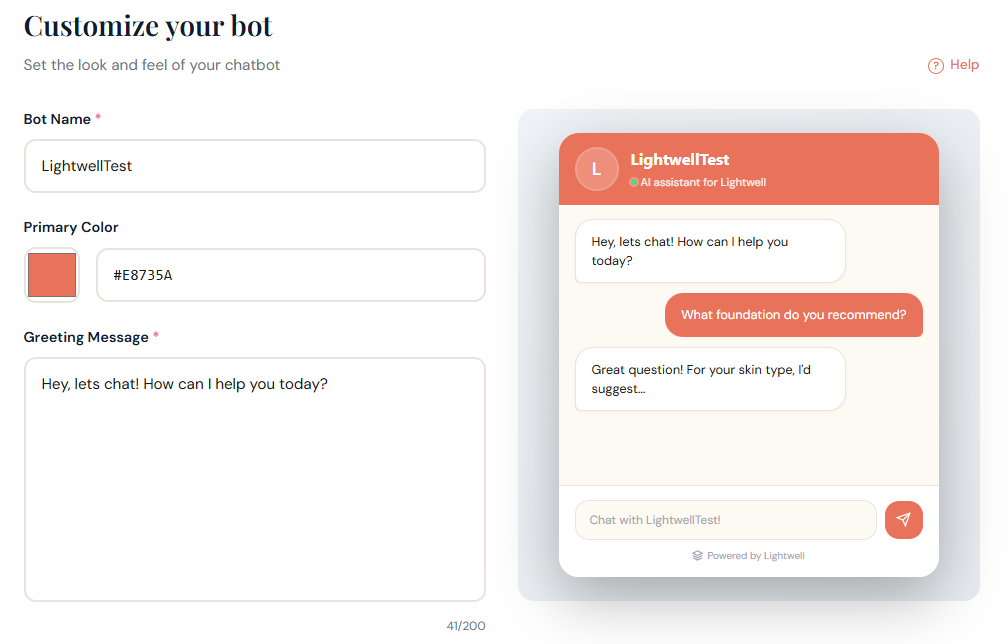
Customization Fields
- Bot Name: What your chatbot should be called (e.g., "LightwellTest")
- Primary Color: Choose a hex color that matches your brand (live preview on the right)
- Greeting Message: First message visitors see (e.g., "Hey, lets chat! How can I help you today?")
- Placeholder Text: Input field hint (e.g., "Chat with LightwellTest")
💡 Tip: See changes in real-time with the live preview on the right side!
Step 4: Upload Affiliate Links (Optional)
Upload your affiliate links so your chatbot can recommend products automatically.
CSV Format
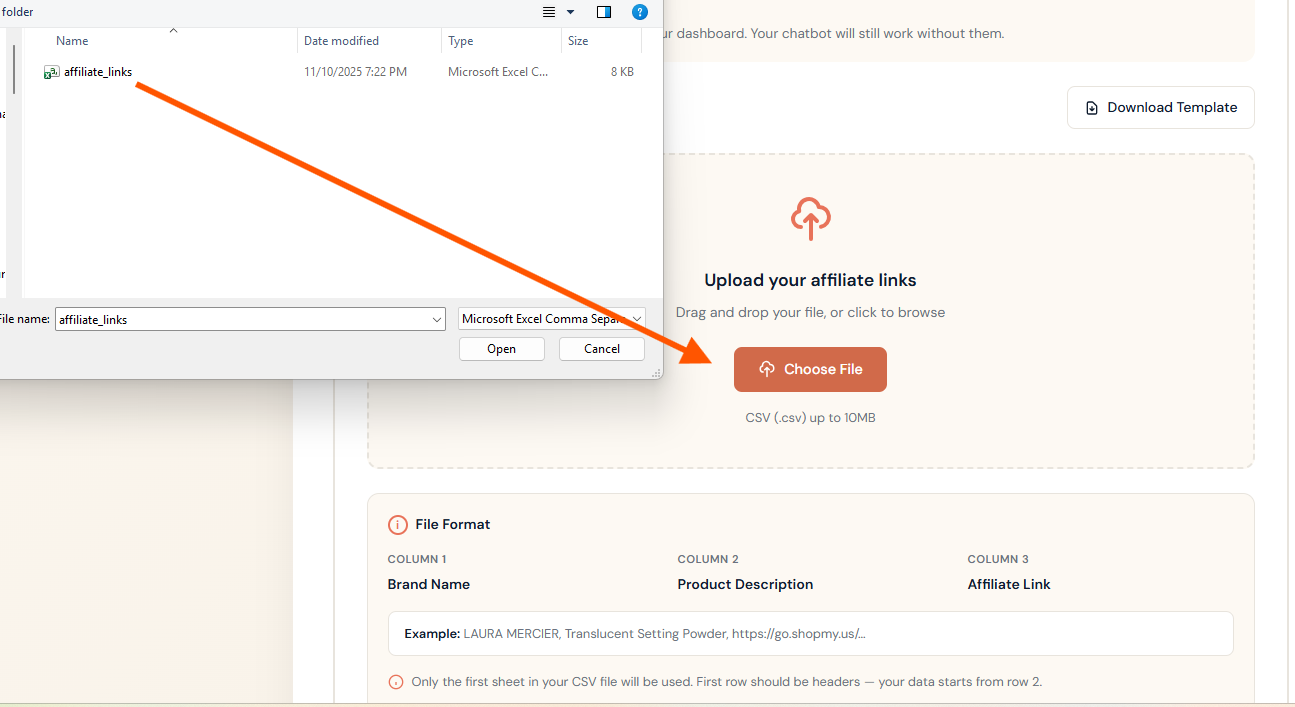
Create a spreadsheet with exactly 3 columns:
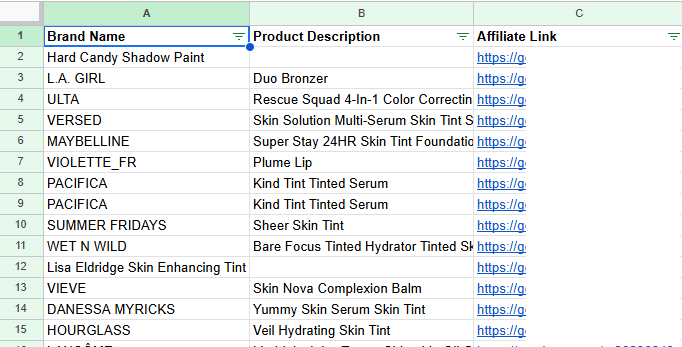
- Brand Name: e.g., "ULTA", "MAYBELLINE"
- Product Description: e.g., "Rescue Squad 4-In-1 Color Correcting Palette"
- Affiliate Link: Your full affiliate URL starting with http:// or https://
Upload Your File
Once your CSV is ready, upload it in the configuration screen:
See detailed affiliate links guide →
Step 5: Wait for Processing
Once you click "Complete Setup", our AI will:
- Fetch your Instagram posts (based on your tier limit)
- Transcribe any video content
- Match affiliate products to your posts
- Build your chatbot's knowledge base

Your bot status will show "Processing" during setup
Processing time:
- Starter (50 posts): ~5-10 minutes
- Pro (200 posts): ~15-20 minutes
- Elite (500 posts): ~30-40 minutes
ℹ️ You can close the page - we'll email you when your chatbot is ready!
Step 6: Share Your Chatbot
Once processing is complete, you'll get a unique chatbot URL:
https://lightwellchat.com/chat/yourusernameWhere to share:
- Instagram bio link
- Instagram Story link sticker
- Story highlights (create an "FAQ" or "Shop" highlight)
- Post captions and comments