Affiliate Links Guide
Learn how to upload and manage affiliate links so your chatbot can recommend products to your audience.
How It Works
When you upload affiliate links, Lightwell uses AI to automatically match products to your Instagram content. Here's the process:
- Content Analysis: We analyze your Instagram posts (captions and video transcripts) to understand what you're talking about
- Product Matching: Our AI compares your content with your affiliate product descriptions using semantic similarity (meaning-based matching, not just keywords)
- Smart Recommendations: When someone asks about a topic, your chatbot recommends the most relevant products from your affiliate links
💡 Example: If you post about "my summer skincare routine" and have affiliate links for sunscreen and moisturizer, those products will be matched to that post. When users ask about summer skincare, your bot will recommend those products.
Affiliate Link Limits by Tier
CSV File Format
Your affiliate links file must have exactly three columns in this order:
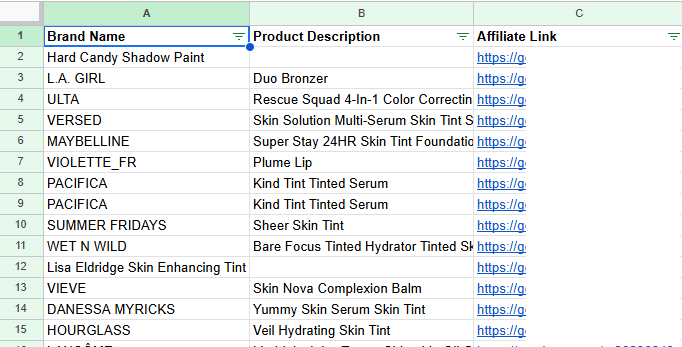
ℹ️ Important:
- The first row should be the header row with column names
- Only the first sheet in your CSV file will be used
- Make sure product descriptions are detailed for better matching
Uploading Affiliate Links
During Initial Setup
- Complete Step 1 (Creator Info) and Step 2 (Bot Config)
- On Step 3, drag and drop your CSV file or click to browse
- Wait for the file to upload and validate
- Click "Complete Setup" to finish
After Setup (Anytime)
Once your initial setup is complete, manage your affiliate links from Content → Affiliate Links in the navigation menu.

You can:
Add Single Link
Click "Add Single Link" to manually add one affiliate link at a time. Perfect for adding new products as you discover them.
Upload CSV
Click "Upload CSV" to bulk upload multiple affiliate links. You have two options:
- Add to current links: Append new links to your existing repository
- Replace all links: Remove all existing links and replace with your new upload
Delete Links
Delete individual links anytime using the "Actions" column in the affiliate links table. Click the delete icon next to any link to remove it.
ℹ️ Note: After adding, uploading, or deleting affiliate links, your chatbot will automatically reprocess to update product matches with your Instagram content.
Best Practices
- Use detailed product descriptions: The more specific your descriptions, the better the AI can match products to your content
- Export from your affiliate platform: Copy brand names, product descriptions, and links directly from LTK, ShopMy, Amazon Associates, etc.
- Keep links up to date: Remove products that are no longer available or update links that have changed
- Don't exceed your tier limit: The upload will fail if you try to add more links than your plan allows. Upgrade if you need more
Troubleshooting
Upload failed – "Invalid file format"
Make sure your file is a CSV file (.csv) with exactly 3 columns: Brand Name, Product Description, and Affiliate Link. The first row should be the header row with these column names.
Upload failed – "Too many links"
You've exceeded your tier's affiliate link limit. Either remove some links or upgrade your plan.
My bot isn't recommending my links
Make sure your product descriptions are detailed and match the topics you cover in your content. The AI needs good descriptions to make accurate matches. Check your dashboard's Link Recommendations tab to see what's being recommended.